
Remote power dashboard
The trailer’s system controller reports to VRM (Victron Remote Management), Victron’s web portal, over the trailer’s own cellular link. It shows the same numbers as the touch display in the cabinet, live, from anywhere. Check it before you drive out to a trailer.
Get access
Call VanBelkum support with the names and email addresses of the people who need access. Each person gets an email invitation from VRM, accepts it, and signs in with a free Victron account.
Sign in
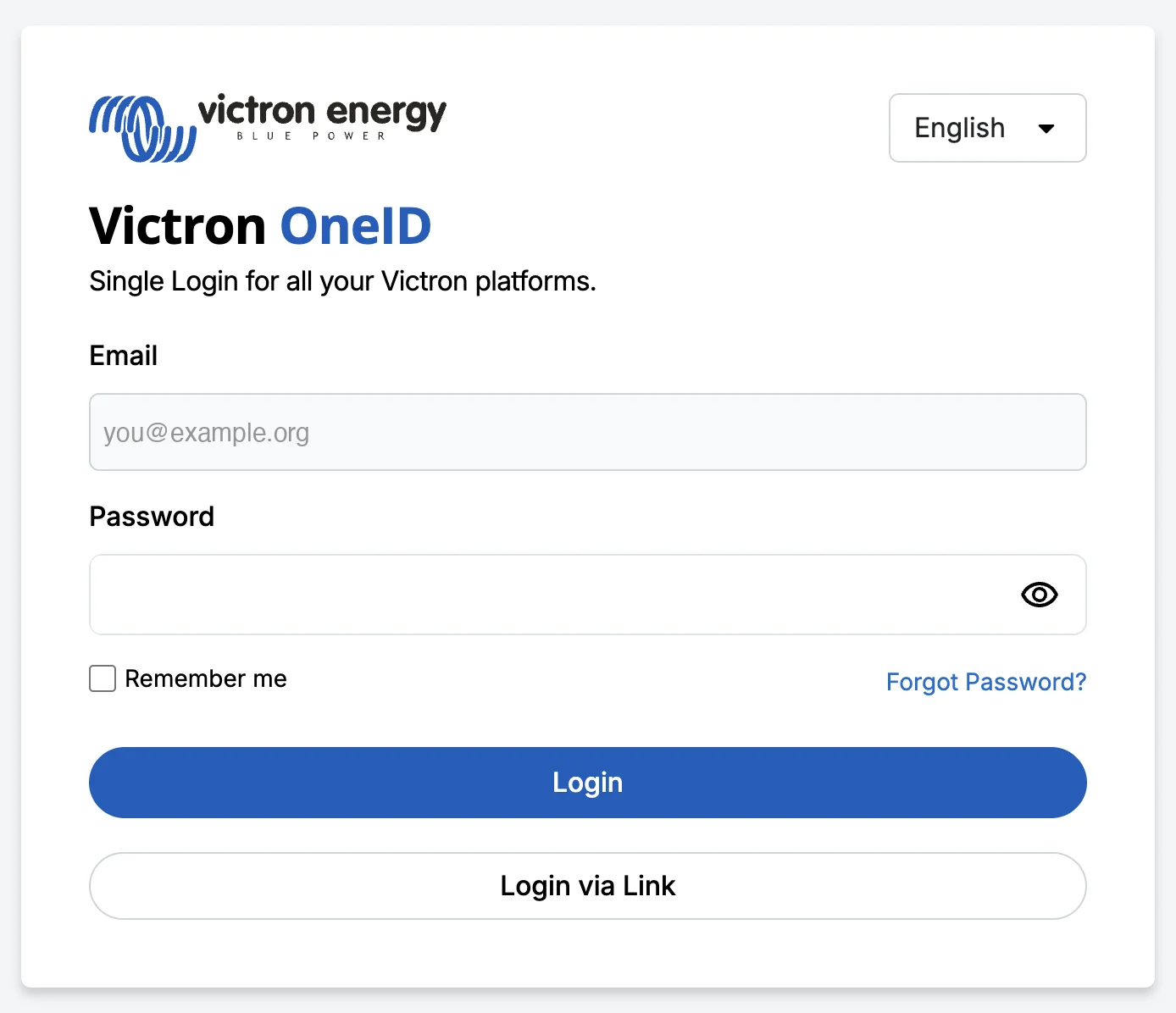
- Go to vrm.victronenergy.com.
- Sign in with your Victron account (Victron calls it OneID): your email and password.
- No password yet, or forgot it? Use Forgot Password?, or Login via Link to have a sign-in link emailed to you.
- Pick your trailer from the installation list. It is listed under your organization’s name.
Read the dashboard
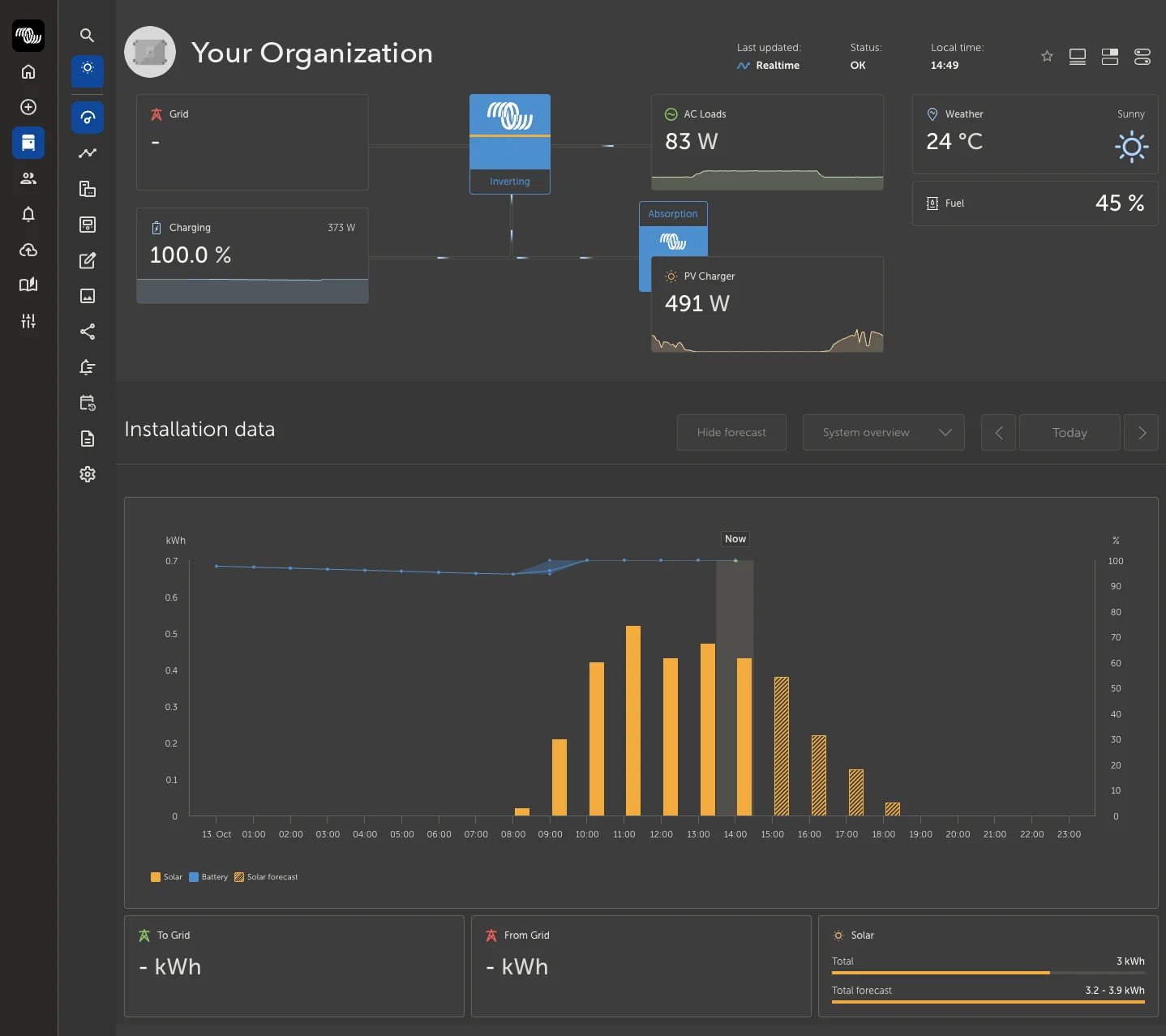
The top half is a live picture of where power is flowing:
| Tile | What it tells you |
|---|---|
| Grid | Shore power coming in. A dash means the trailer is not plugged in, which is normal on site. |
| Battery (Charging / Discharging) | State of charge in percent, and the watts going into or out of the bank. This is the number to watch. |
| Inverter (Inverting) | The inverter is on and supplying power. |
| AC Loads | Power going out to the equipment the inverter feeds, right now. |
| Charger state (Bulk, Absorption, Float) | The stage of charging. Absorption and Float mean the bank is at or near full. |
| PV Charger | Solar watts coming in from the panels right now. Zero at night is normal. |
| Weather | Conditions at the trailer’s location. |
| Fuel | Generator fuel tank level, on trailers with the generator. |
The Installation data chart below shows the day hour by hour: orange bars are solar harvested, the blue line is battery charge, and the hatched bars are Victron’s solar forecast for the rest of the day. Use the arrows next to Today to step back through earlier days.
What healthy looks like. On a clear day the battery line climbs through the morning and holds near 100% in the afternoon. If it keeps falling day after day, the load is more than the sun is giving back: plan a shore-power top-up or check the generator. See Keeping it charged.
Where the solar went
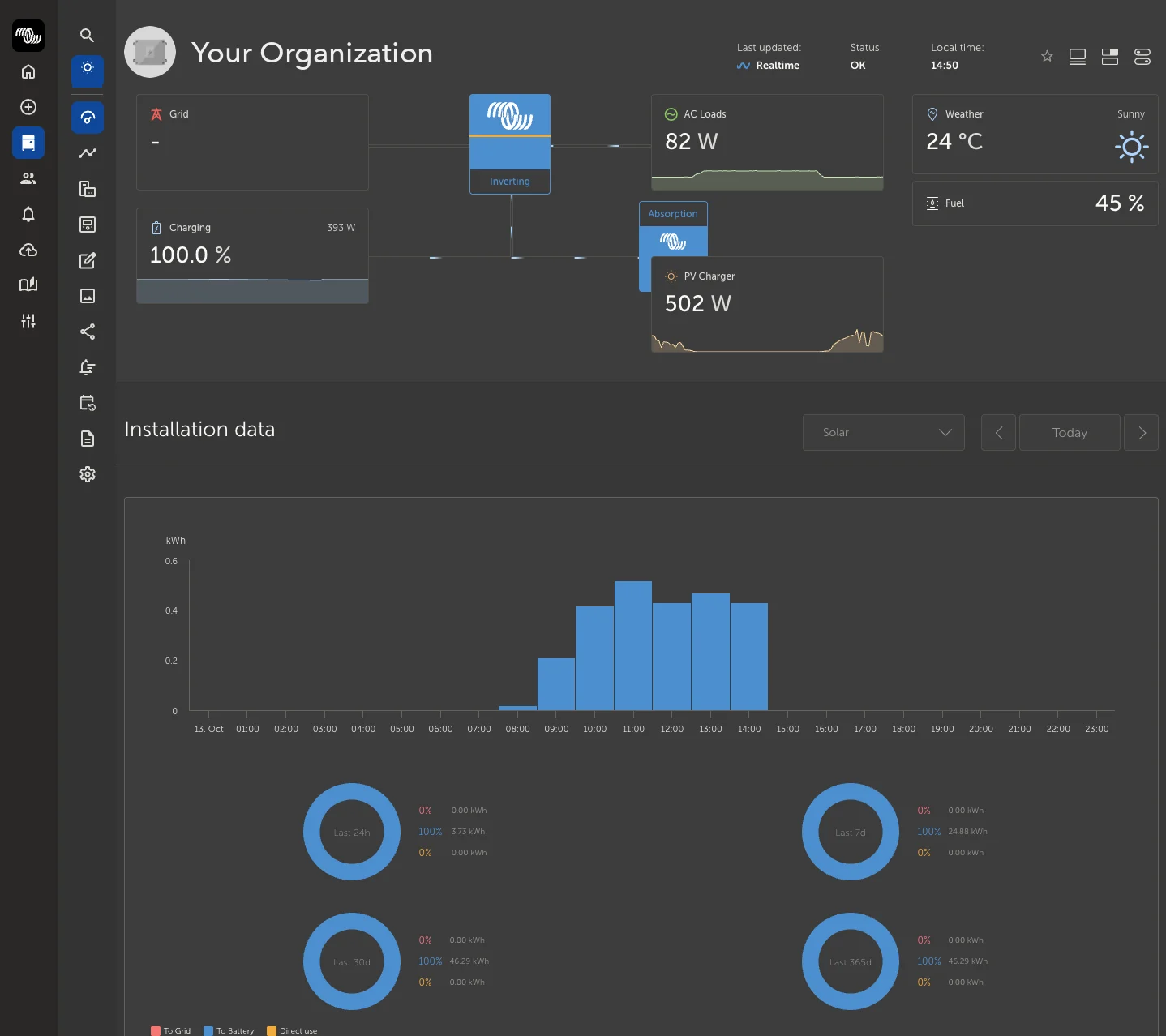
Change the System overview menu above the chart to Solar. The rings show how much solar the trailer harvested over the last 24 hours, 7 days, 30 days, and 365 days, and where it went: into the battery, straight to the loads, or (never, on a trailer) back to the grid.
Event log
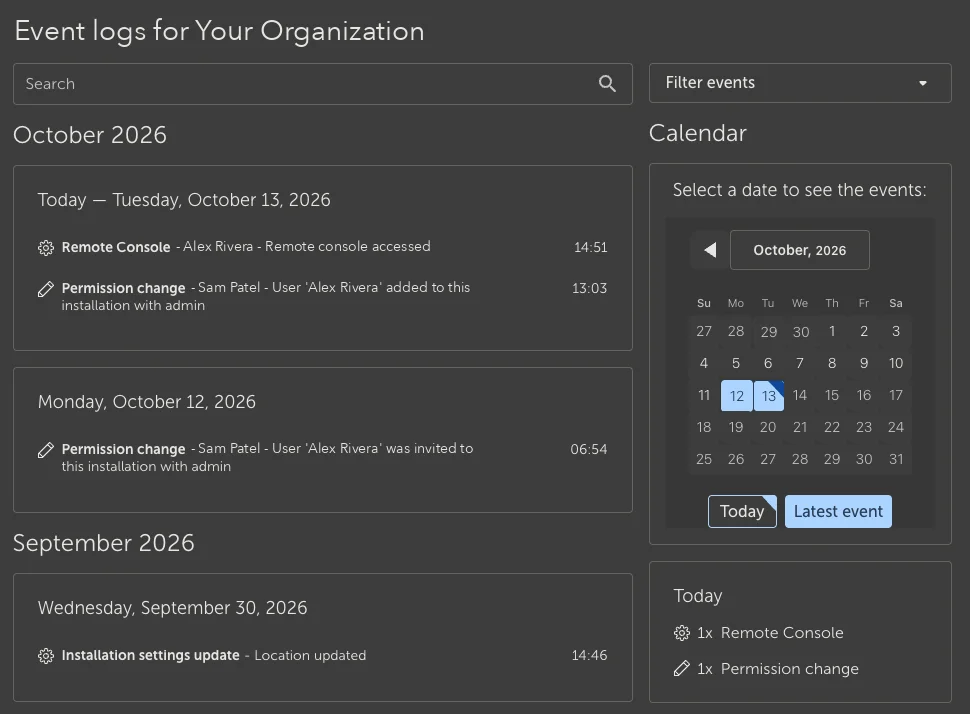
The Event logs page (calendar icon in the left menu) records who did what and when: people added or invited, settings changes, alarms created, and every time someone opened the remote console. Use the calendar to jump to a date, or Filter events to narrow it down.
Users and access
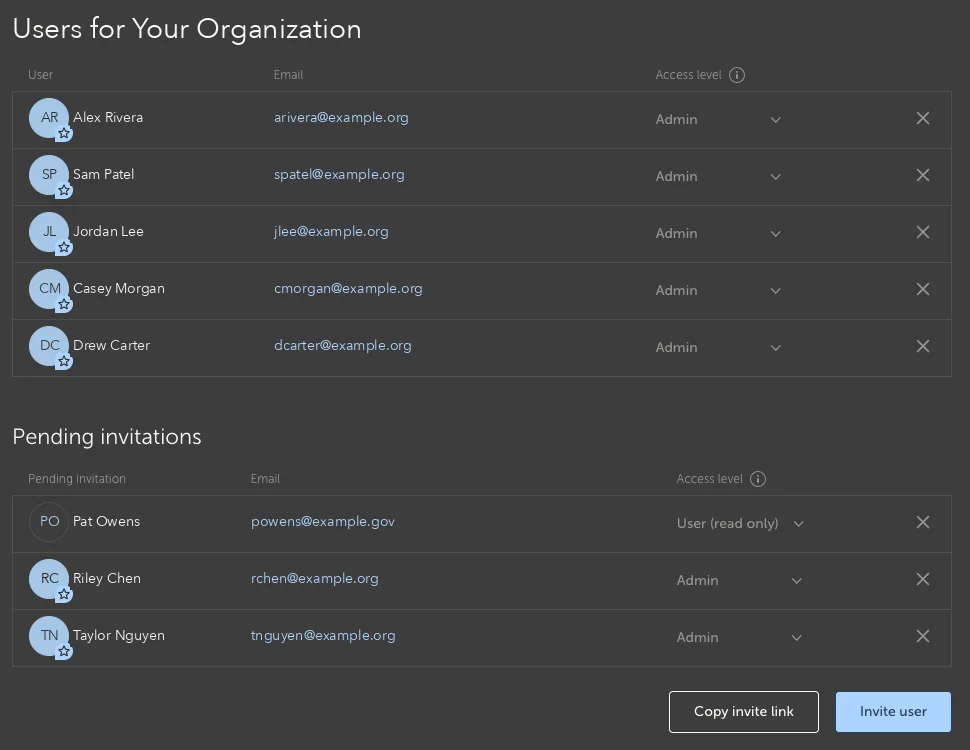
Admins manage access under Settings → Users:
- Admin can see everything, change settings, and invite or remove people.
- User (read only) can see the dashboard and history but change nothing. Use it for anyone who only needs to look, such as a site supervisor or a department head.
- Invite user sends an email invitation. Invitations wait under Pending invitations until accepted.
- The X at the end of a row removes that person’s access.
Admins can open the remote console, which is the cabinet’s touch display operated from a browser. Anything changed there changes the trailer, including generator start and stop thresholds. Call VanBelkum support before changing a setting.