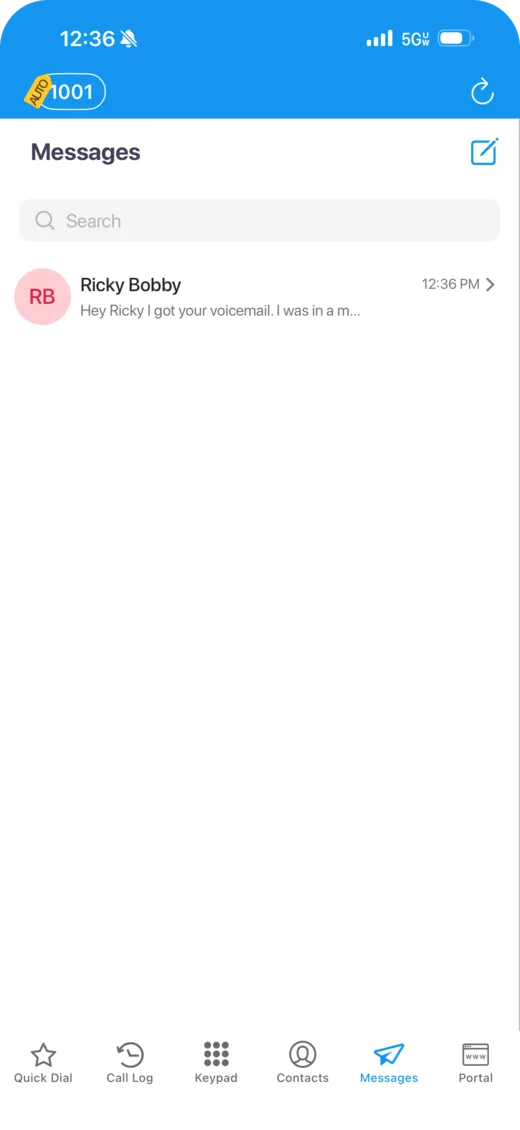
Install the app
Download ConnectWare from the App Store on your iPhone.
Starpeer · ConnectWare · iPhone
Everything the ConnectWare app does on an iPhone, one screen at a time. Real screenshots, real taps, in the order you will actually use them.
Section 1 · Getting started
Download ConnectWare from the App Store on your iPhone.
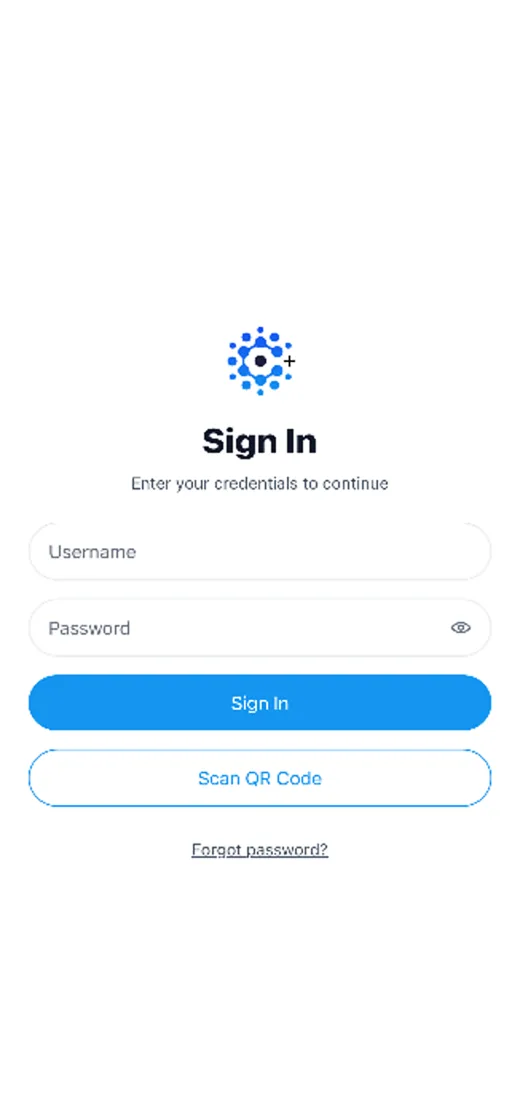
Use the same username and password you use for spvoice.starpeer.com. There is no separate mobile login.
Allow everything the app asks for, with one exception you may choose: Contacts is optional. Skip it if you would rather keep your personal contacts out of the app.
Section 2 · Keypad and calling
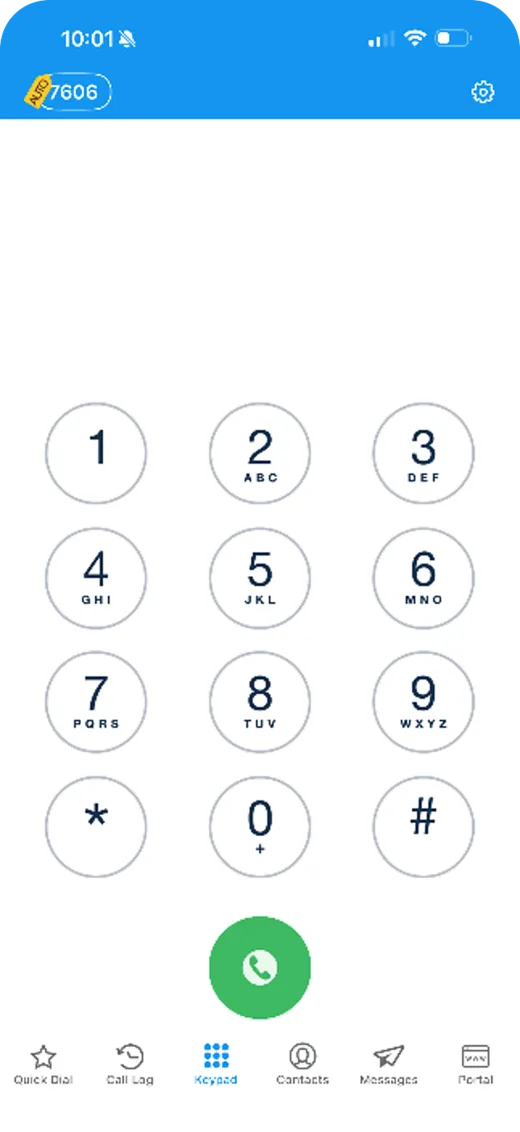
The app opens on the Keypad after sign-in. Outside numbers and internal extensions both go through here.
Step 1 of 3keep scrolling to advance
After signing in, ConnectWare lands on the Keypad tab. The tabs along the bottom (Quick Dial, Call Log, Keypad, Contacts, Messages, Portal) are how you move around.
Type the number and tap the green call button. The call shows the company's caller ID, not your personal cell number.
To reach someone else on the phone system, dial their extension the same way. No prefix, no outside line.
Section 3 · Do Not Disturb
DND in the app only quiets the app. Your desk phone keeps ringing unless you use the full code.
Step 1 of 3keep scrolling to advance
It is the badge in the top-left corner of the app, on any tab. A panel slides up with the Do Not Disturb switch and your voicemail count.
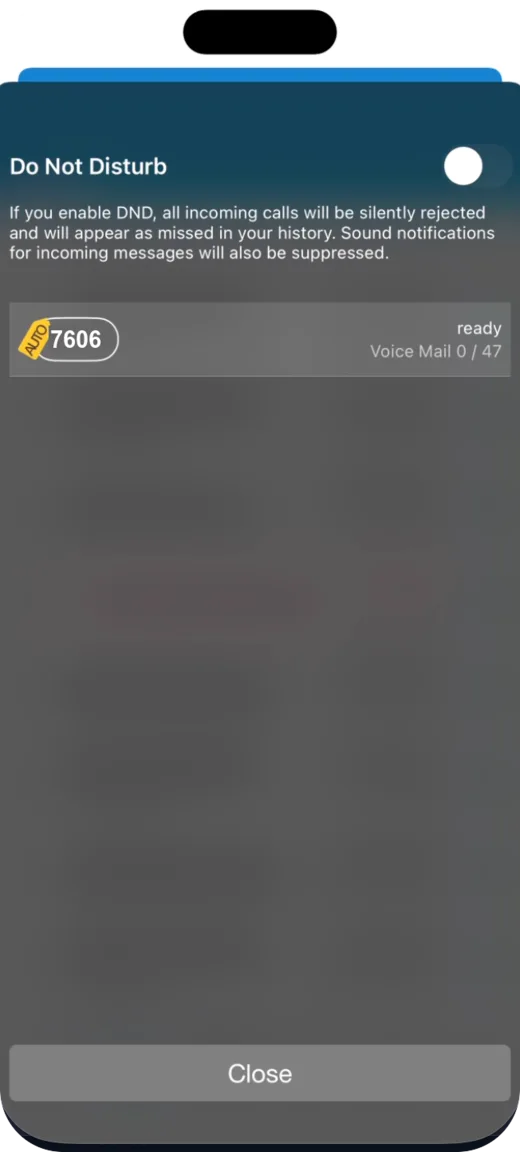
Flip the switch. While it is on, the extension badge shows a red DND tag and the app will not ring. Your desk phone still rings. Tap Close when you are done.
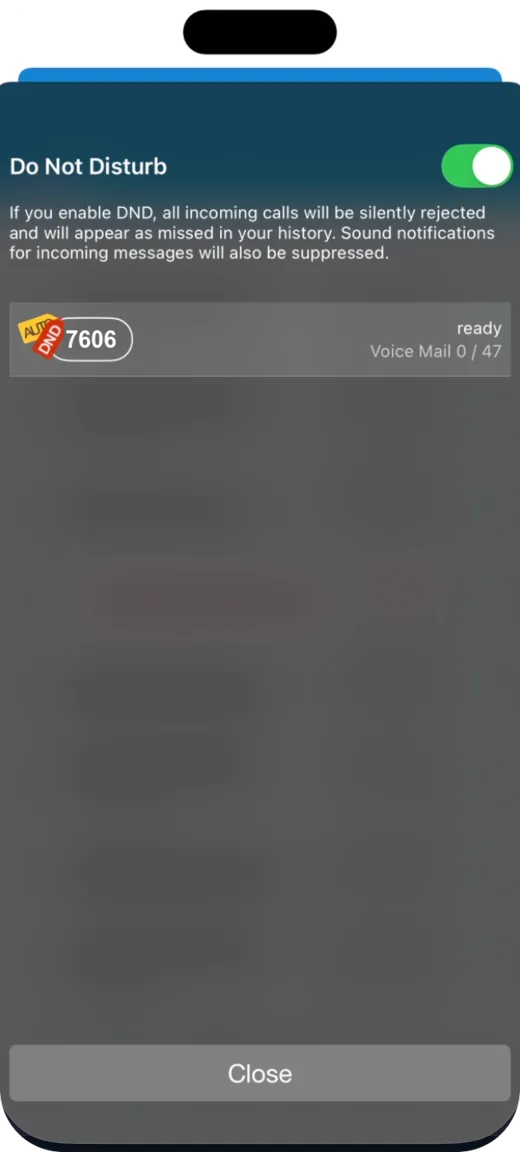
To put yourself on DND everywhere, desk phone included, dial *76 from the Keypad. Dial it again to come back.
Section 4 · Call logs and voicemail
The Call Log tab holds your history and your voicemail. Voicemail is not under Messages.
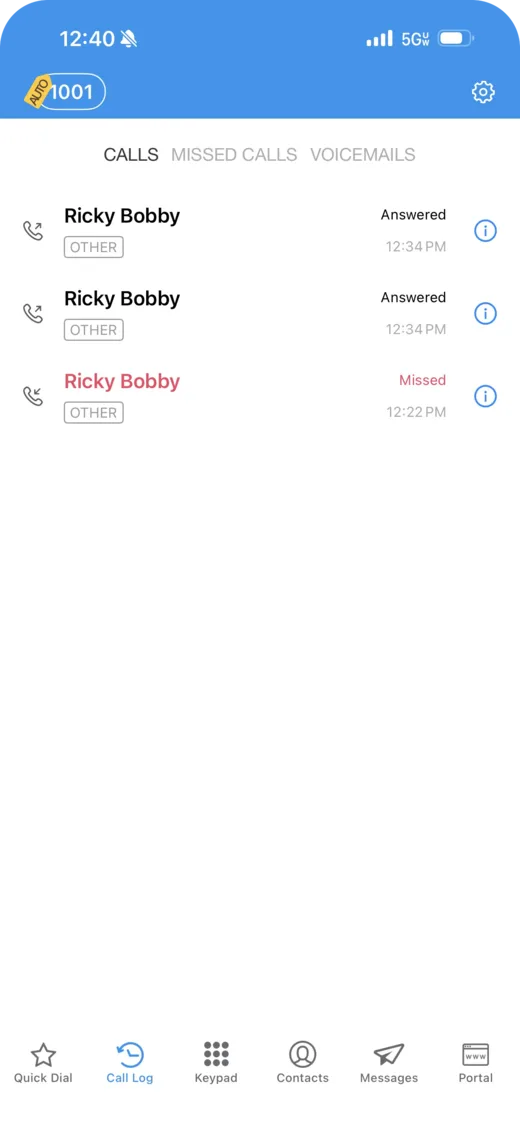
Step 1 of 3keep scrolling to advance
Tap Call Log in the bottom bar. It opens on Calls: everything in and out, newest first, with the answered or missed status on the right.
Tap Missed Calls at the top to see only the ones you did not answer. Missed calls also show in red in the full list.
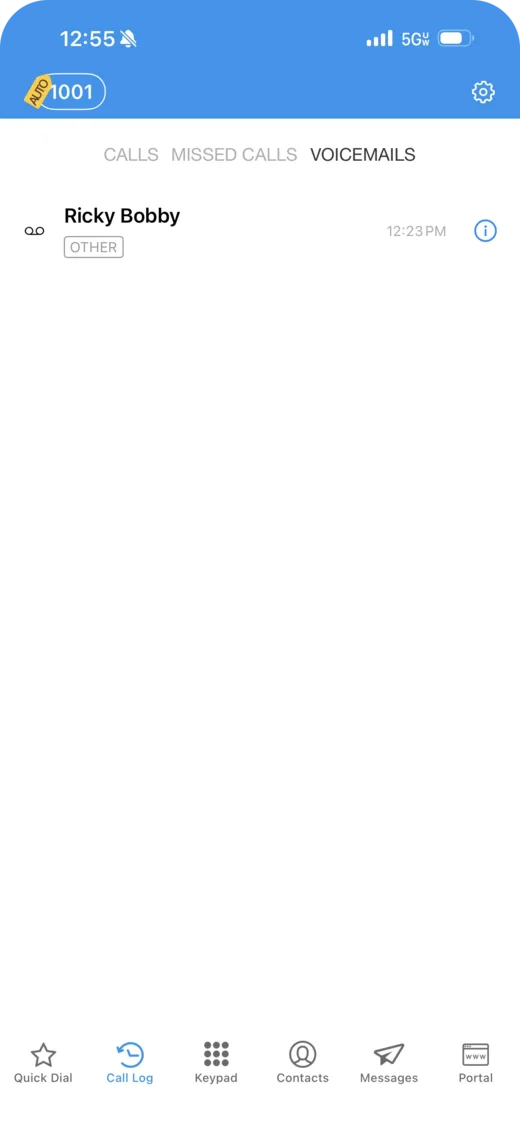
Tap Voicemails to see your messages. To listen to one, tap the blue i to the right of it. This is the only place voicemail lives in the app.
Section 5 · Contacts
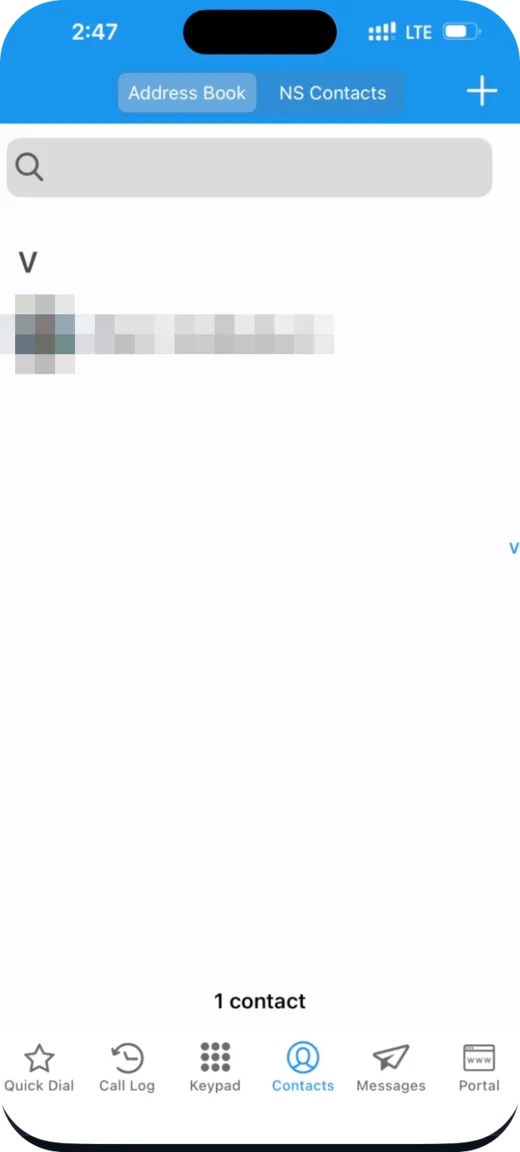
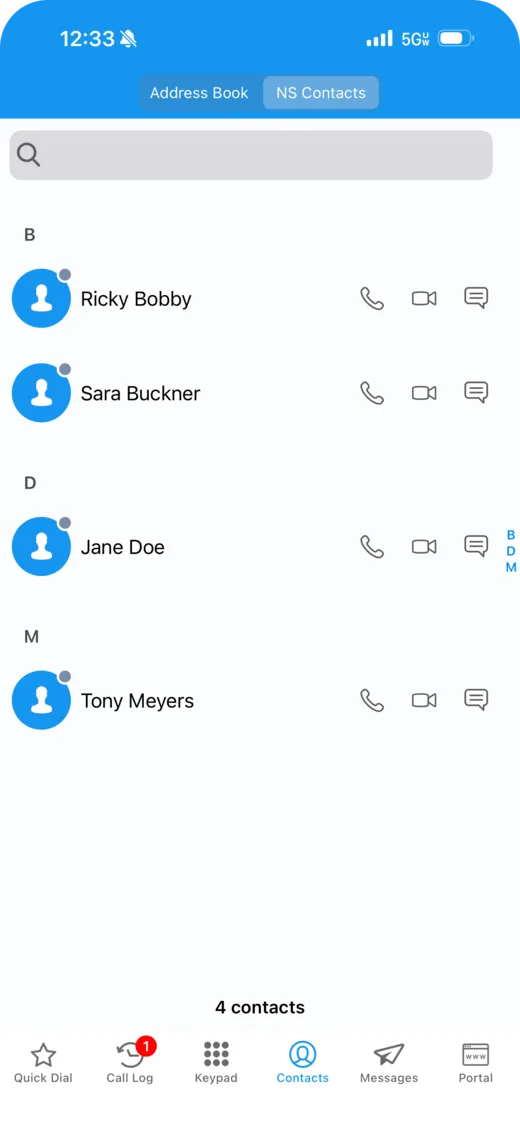
Your phone's own contacts and the company directory sit side by side. The toggle at the top switches between them.
Step 1 of 2keep scrolling to advance
Tap Contacts in the bottom bar. Address Book is your iPhone's own contacts, and it only fills in if you gave the app Contacts permission at install.
Tap NS Contacts at the top for everyone on the phone system. Each person has call, video, and chat buttons right in the list. A dot on the avatar shows their status.
Section 6 · Quick Dial
Five taps from a contact's profile. Turn on Busy Lamp Field so you can see whether they are on a call before you dial.
Step 1 of 5keep scrolling to advance
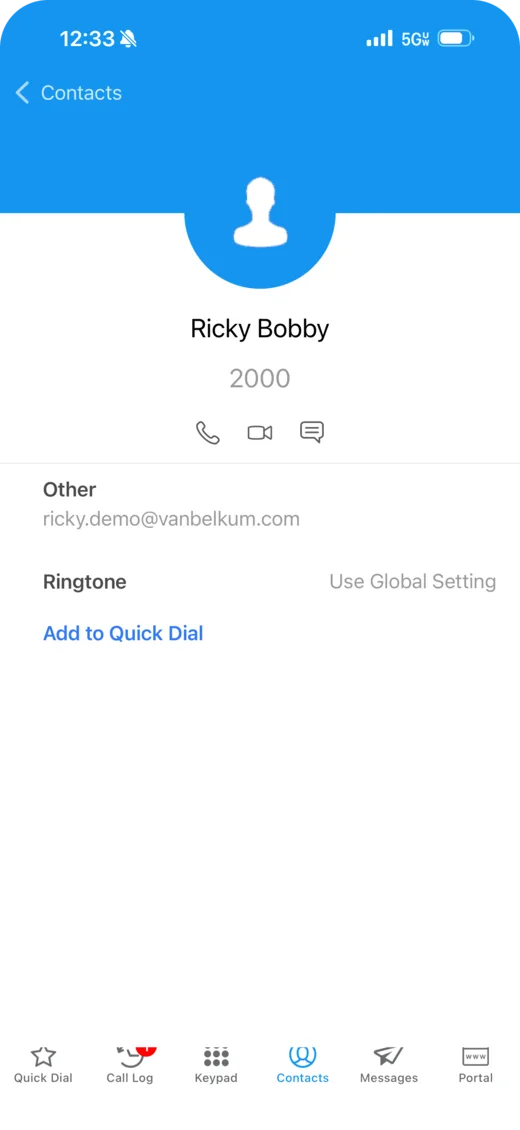
From NS Contacts, tap a person's name. Their profile shows the extension and an Add to Quick Dial link near the bottom.
A sheet slides up asking which entry to use for the new Quick Dial.
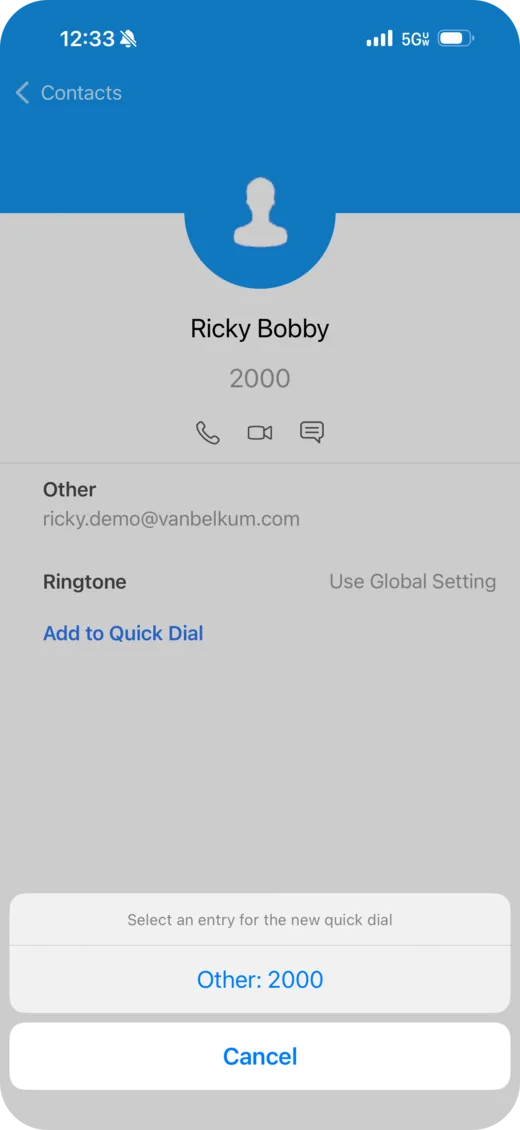
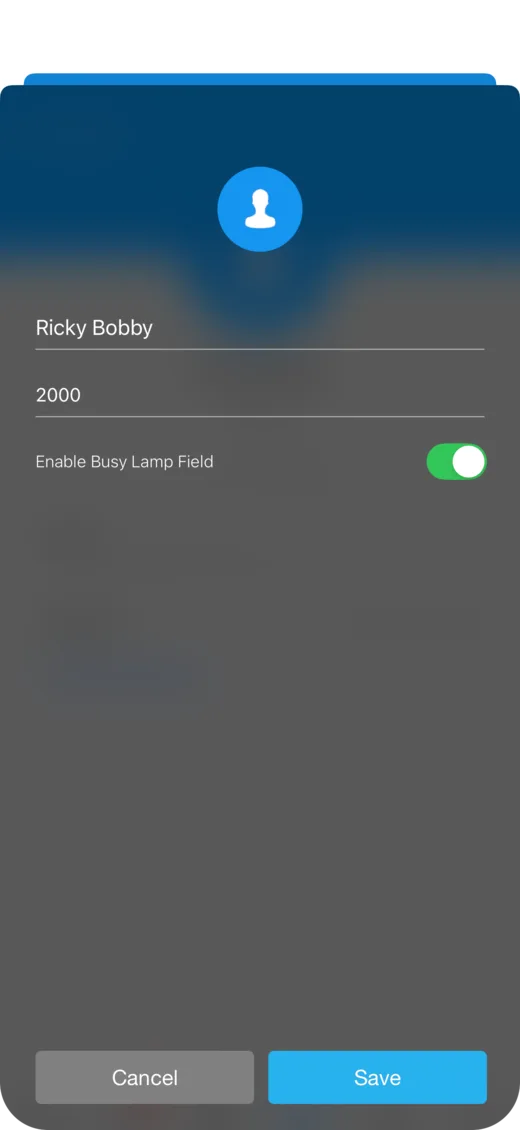
Choose the Other entry, the one showing the extension. The Quick Dial settings screen opens with the name and extension filled in.
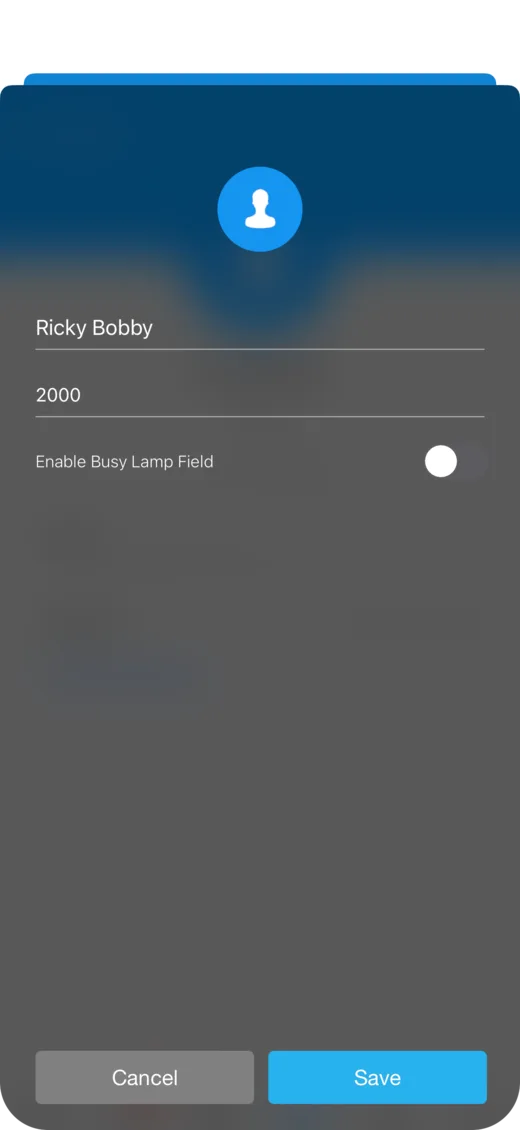
Flip Enable Busy Lamp Field on. This is what lets Quick Dial show whether the person is on a call.
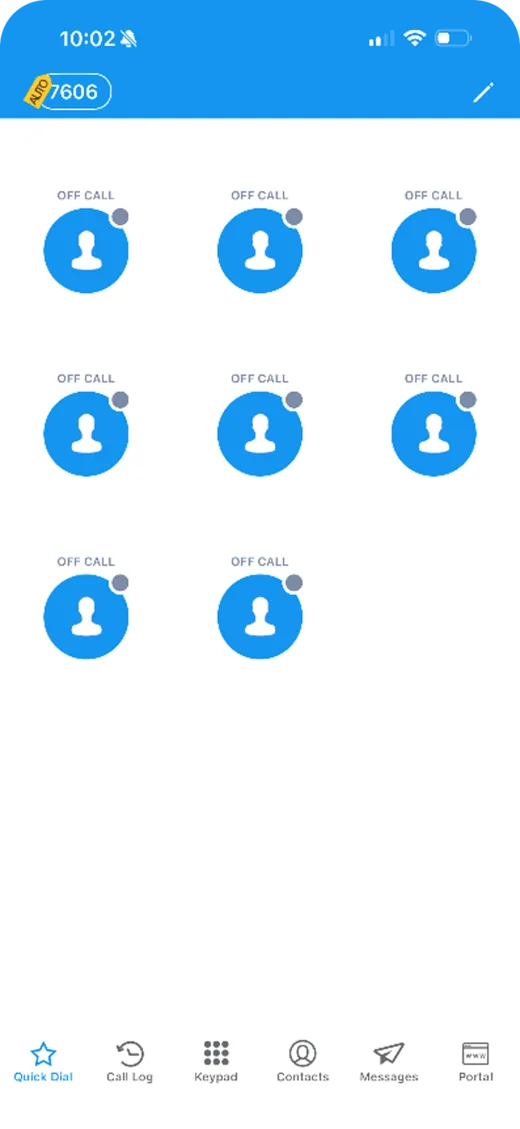
The person now appears as a tile on the Quick Dial tab, with their status above the avatar.
Section 6 · Quick Dial
Quick Dial opens as tiles. Pull down and it becomes a list with names and status.
Step 1 of 4keep scrolling to advance
Open Quick Dial, bottom-left. Each tile's label says whether the person is on a call, off call, or on DND. Tap a tile to call them.
Drag the list down and let go, the same gesture as refreshing a web page. The tiles switch to a list with each person's name and their status on the right: on a call, off call, or DND. People appear in the order you added them.
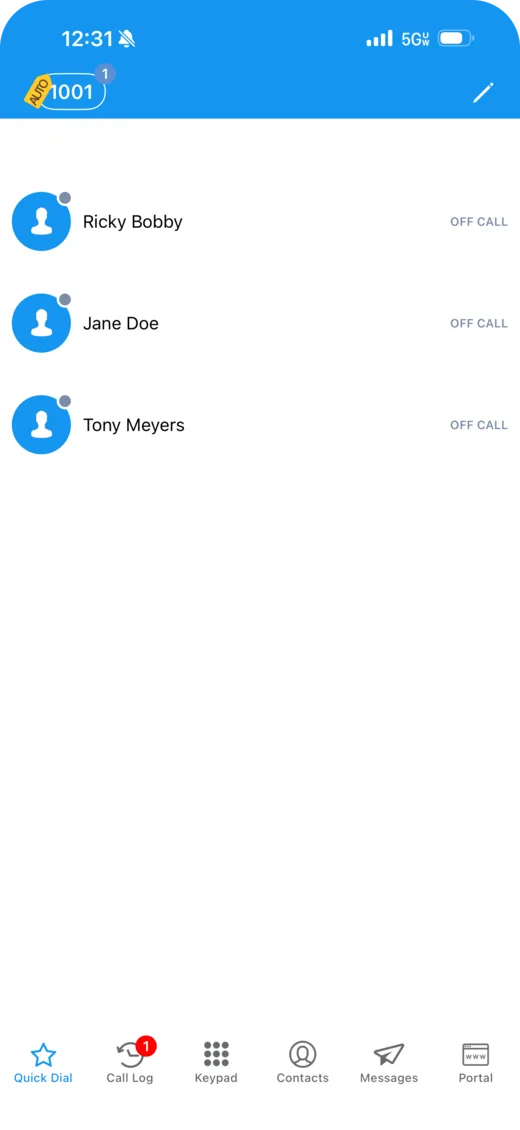
In the list view, find the person and slide left on their name, then tap Remove.
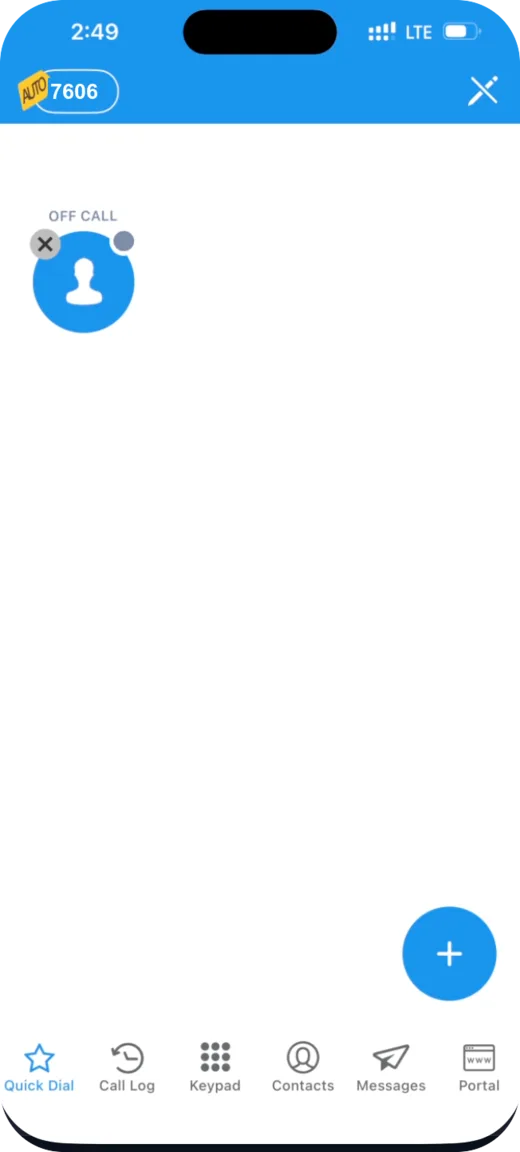
In the tile view, tap the pencil in the top-right corner. An ✕ appears on every tile. Tap the ✕ on the person you want gone, then tap the ✕ in the corner to leave edit mode.
Quick reference
*76Knowledge check
The same ones you use for spvoice.starpeer.com.
The company's caller ID, not your personal cell number.
It still rings. App DND only silences the app.
*76, dialed from the Keypad.
Call Log, then the Voicemails filter at the top. Tap the blue i next to a voicemail to listen.
Contacts, then NS Contacts.
Whether the person is on a call before you dial them.
Pull down on the screen, like refreshing a web page. It switches to the list view with each person's status.
In the list view, slide left on their name and tap Remove. In the tile view, tap the pencil and then the ✕ on their tile.
The Messages tab.